
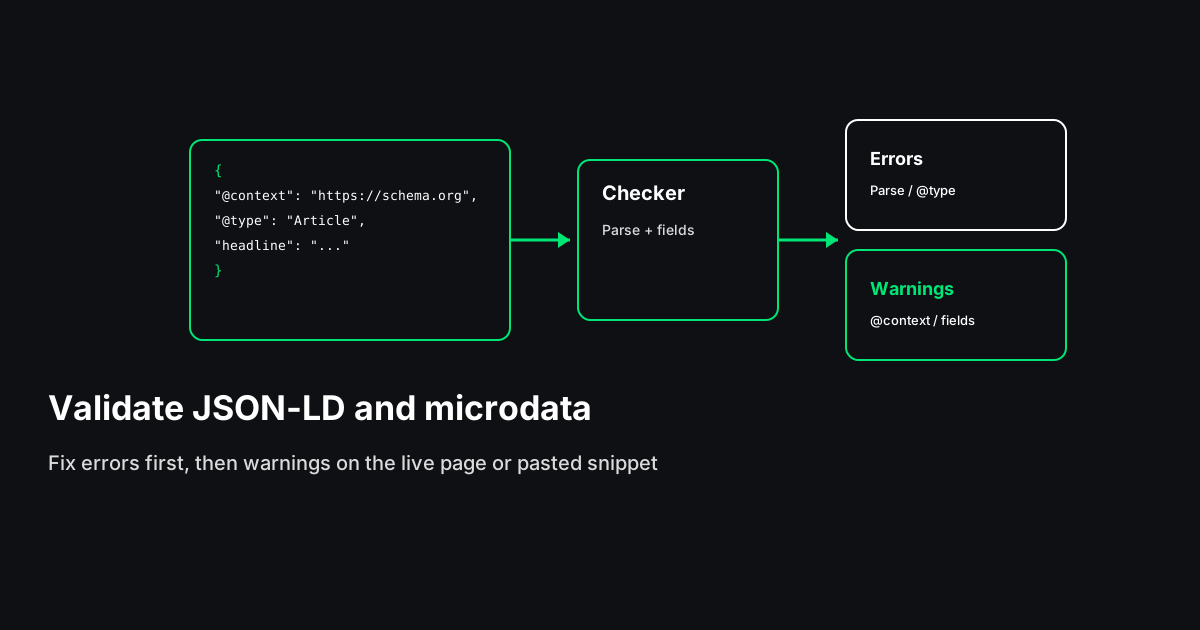
A schema checker reads the structured data on a page and tells you whether a machine can parse it and whether the fields search engines look for are there. Paste a URL into the Scrawl Schema Checker, fix anything marked as an error, then work through the warnings. Valid markup does not guarantee a rich result, but broken markup rules one out.
What schema markup is
Schema markup is a set of labels from the schema.org vocabulary that you add to a page so software can tell what the page is about. A human sees a recipe. A crawler sees text and images until something says "this is a Recipe, this is its cook time, this is its rating."
Google, Bing and other consumers read that markup to understand entities on the page and, for some types, to build rich results: product prices and stock, breadcrumbs, review stars, event dates and similar extras in the search listing.
There are three ways to write it. JSON-LD sits in a <script type="application/ld+json"> block. Microdata puts itemscope, itemtype and itemprop attributes on your existing HTML. RDFa does the same job with a different set of attributes. Google accepts all three and recommends JSON-LD.
How to check schema markup with the Schema Checker
The tool has two modes, and they answer different questions.
URL mode answers "what does this live page actually serve?" Enter the address and run the check. The tool requests the page, reads the HTML the server returns, and pulls out every JSON-LD script block and every microdata itemscope it finds. JSON-LD that uses @graph gets split into its separate nodes, so a site-wide graph with Organization, WebSite and Article shows up as three items, not one blob. Alongside the schema, URL mode also lists the page's Open Graph tags, Twitter card tags, title, meta description, robots meta and canonical, plus an overall score.
Paste mode answers "is this snippet right before I ship it?" Switch to Paste JSON-LD and drop in a raw object, an array, or a full <script type="application/ld+json"> block. Nothing gets fetched. This is the faster loop when you are editing a template or a CMS field.
A practical routine:
- Check the live URL first so you see what Google would see today.
- Copy the block that has a problem into paste mode.
- Edit until errors are gone and the warnings left are ones you understand.
- Deploy the fix, then run URL mode again on the live page.
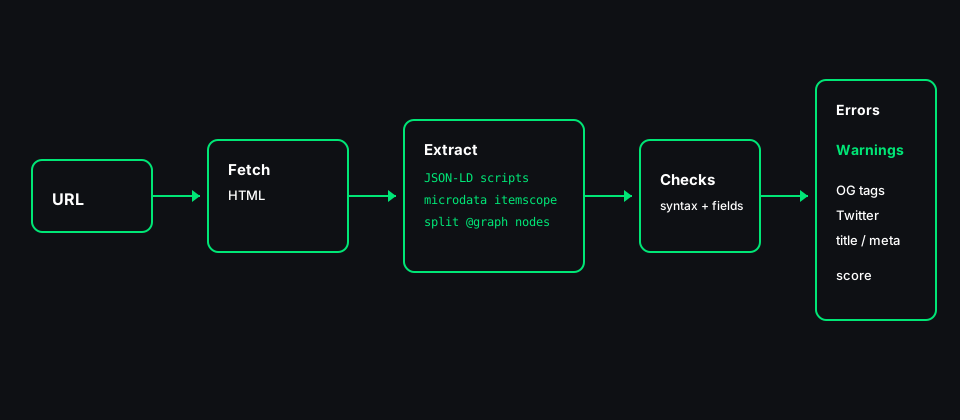
One limit to know: URL mode reads the HTML response. It does not run JavaScript. If your schema is injected client-side by a tag manager or a script after load, the checker will not see it. Google can render JavaScript, but server-rendered JSON-LD is easier for every crawler to pick up, so treat "the checker found nothing" on a JS-heavy page as a prompt to look at how the markup gets added.
Reading the results: errors, warnings and what to fix first
Each JSON-LD item gets a type label, a valid or invalid status, and lists of errors and warnings. Microdata items show the type taken from itemtype and the properties found inside the scope.
Errors mean the item is broken:
- Parse error. The block is not valid JSON, so nothing inside it counts. Common causes are a missing comma between properties, smart quotes pasted from a word processor, an unescaped double quote inside a string, or a stray comment.
- Missing @type. The item parses but does not say what it is. Without a type, no consumer can map it to anything.
Warnings mean the item parses but is thin or unclear:
- Missing or invalid @context. The block should point at
https://schema.org. Without it, the property names have no vocabulary behind them. - Missing recommended field. For common types the tool checks a short list of fields: Article needs
headline,authoranddatePublished; Product needsname,imageandoffers; LocalBusiness needsname,addressandtelephone; Event needsname,startDateandlocation. BreadcrumbList, FAQPage, Review, Organization, WebSite, Person and VideoObject have their own checks. - Empty breadcrumb list. A BreadcrumbList with no items.
- Microdata scope with no properties. An
itemscopethat declares a type but carries noitempropvalues.
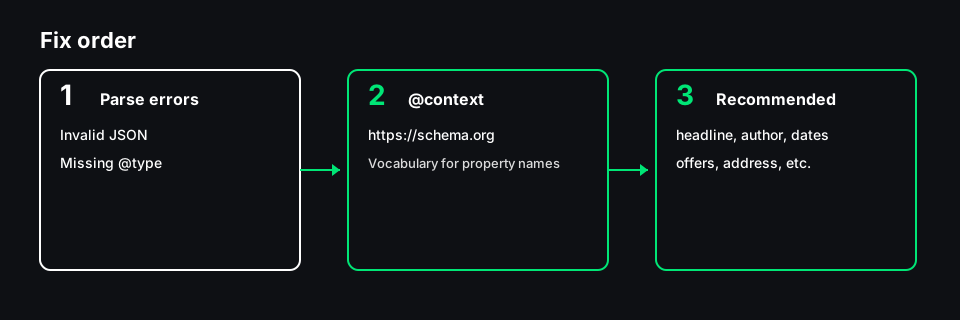
Fix errors first, since a broken block hides everything else in it. Then add missing fields. The checker's field list is a floor, not the full spec: Google's documentation for each rich result type lists required and recommended properties, and some go beyond what any general checker tests. When a type matters to you, read Google's page for it and compare field by field.
Common schema mistakes and how to fix them
Invalid JSON. JSON does not allow trailing commas, single quotes or comments. The checker tries to read past a trailing comma or HTML-encoded quotes, but other parsers may not, so clean them up anyway. If you build JSON-LD in a template, generate it with your language's JSON encoder instead of string concatenation; that removes most quoting bugs at once.
Dates in the wrong format. Use ISO 8601: 2026-10-29 or 2026-10-29T09:00:00+05:00. A date like 29/10/2026 is ambiguous and may be ignored.
Markup that does not match the page. Prices, ratings, FAQ answers and authors in the schema should match what a visitor sees. Marking up reviews that are not on the page, or a price that differs from the visible one, is the kind of thing Google's structured data policies treat as spam.
Two plugins, two graphs. Themes and SEO plugins often both output Organization or Article markup. You end up with duplicate or conflicting items. URL mode lists every block it finds, which makes duplicates easy to spot; keep one source and switch the other off.
Relative or broken image URLs. Use absolute URLs for image, logo and url fields, and make sure they load.
If you would rather start clean than patch, the Structured Data Generator builds JSON-LD for Article, Product, FAQ, LocalBusiness, Breadcrumb and other types. Generate, paste the output into the Schema Checker, then add it to your template.
JSON-LD vs microdata
Both describe the same things. The difference is where the markup lives.
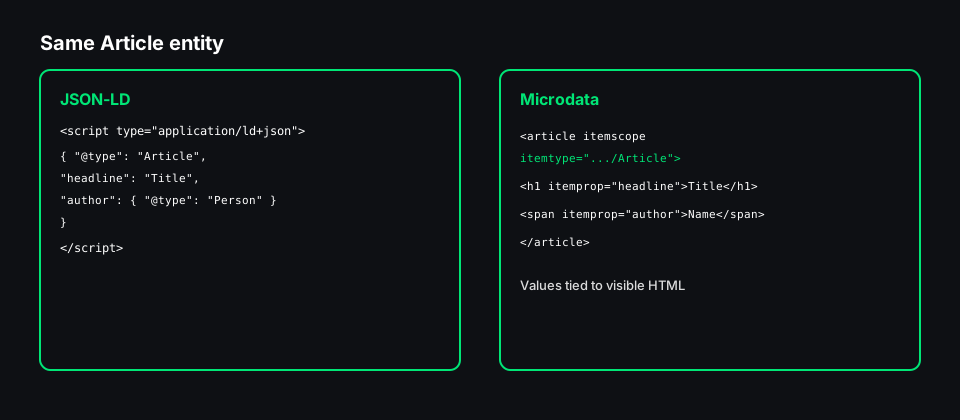
JSON-LD is one self-contained block. You can add or change it without touching visible HTML, generate it from your data layer, and review it in a single place. That is why most modern sites and frameworks use it, and why Google recommends it.
Microdata is woven into the HTML. Each value is attached to the element that displays it, so the markup and the visible content stay in sync by design. The cost is that a redesign can break it without anyone noticing, and nested types get hard to read.
If you are starting fresh, use JSON-LD. If an older theme already outputs microdata that validates, there is no need to rip it out, but avoid describing the same entity in both formats on one page. The Schema Checker reads both, so you can see whether that is happening.
Which schema types matter for rich results
Not every schema.org type produces a visible change in search. Types tied to Google rich result features include Product (with offers and reviews), BreadcrumbList, Article, Event, Recipe, VideoObject, LocalBusiness, Review snippets, JobPosting and Organization (logo and site details).
Two changes from recent years are worth knowing. Since 2023, Google shows FAQ rich results only for a small set of well-known government and health sites, and it stopped showing HowTo rich results. FAQPage markup is still valid schema and still describes your Q&A to machines; just do not add it expecting the old dropdowns in search. And no rich result is guaranteed: Google decides per query, even when the markup is perfect.
Checking more than one page
Schema usually comes from templates, so one broken template means hundreds of broken pages. After a theme or plugin update, sample one URL per template type: home, a category page, a product or post, a contact page. When you need a wider sweep, the Bulk Schema Checker audits up to 50 URLs and shows schema types, errors and warnings for each in one table. Use it to find the template that is failing, then open that URL in the single-page checker to see the detail.
After a fix goes live, request indexing for a representative URL in Search Console and watch the enhancement report for that type. Google's Rich Results Test is the final word on whether a page is eligible for a specific rich result; the Schema Checker is the faster place to find and fix the markup before you get there.