
Shipping a template change on Friday and hoping accessibility “just works” is how empty links and missing lang attributes reach production. Automated checks will not replace a skilled audit, but they will catch a predictable set of HTML mistakes in minutes — if you know what they measure and what they ignore.
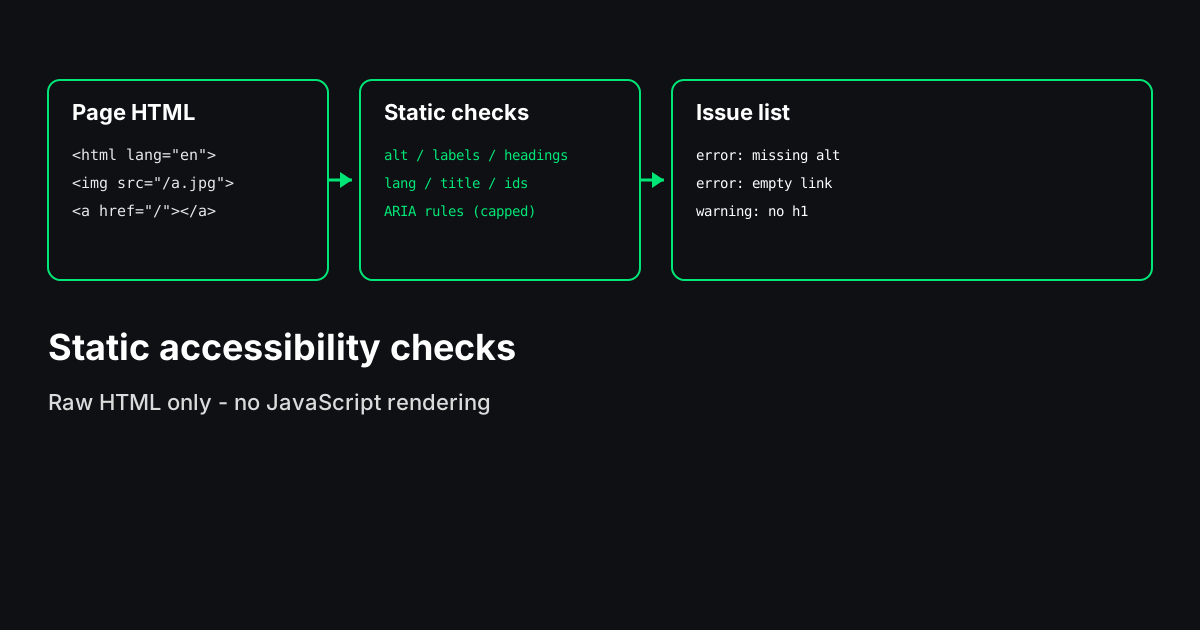
The Accessibility Checker on Scrawl fetches one URL, parses the raw HTML (up to 1.5MB), and runs a fixed rule set: image alt, link and button names, form labels, heading structure, document lang and <title>, duplicate id values, and a small set of ARIA misuse patterns. JavaScript is not executed. Results are grouped by check with error, warning, and info severities — not a percentage score or WCAG certificate.
!Three-step flow from SSRF-safe fetch through capped static checks to issues by severity
Why static HTML checks are worth running first
Manual accessibility testing is slow. Fully manual testing of every component state is unrealistic before each deploy. Static linters trade depth for speed: they flag markup patterns that break baseline access — unnamed controls, missing document language, images without alt — before you spend time in VoiceOver or NVDA.
That matters for three practical reasons:
- Usability and compliance context — Unlabeled form fields and icon-only links with no accessible name block people who rely on screen readers or voice control from completing tasks. Fixing those patterns in HTML is a practical baseline before deeper testing.
- Crawl and parsing — Search engines and assistive technologies both lean on HTML semantics. A missing
<title>or duplicateidbreaking alabel[for]association hurts humans and creates brittle DOM hooks for scripts. - Template QA — CMS swaps, header/footer refactors, and design-system rollouts repeat the same mistakes site-wide. One URL through a linter on a staging host catches class-level errors early.
Treat automated results as a gating checklist, not a finish line.
What each check means (and how to fix it)
Image alternative text
What it catches: img without an alt attribute; input type="image" without meaningful alt. Decorative images with alt="", role="presentation", or aria-hidden="true" should be skipped.
Fix: Describe the informative image, or intentionally mark decorative images empty.
<!-- Informative -->
<img src="/team.jpg" alt="Support team at the Manchester office">

<!-- Decorative -->
<img src="/divider.svg" alt="" role="presentation">
For a page-wide image inventory with every src, use the Image Alt Checker. The multi-check linter only reports missing-alt issues; it does not replace an image-by-image table.
Links and buttons with no accessible name
What it catches: a[href] with no visible text, no aria-label, no valid aria-labelledby, no title, and no child img with non-empty alt. Empty button elements and icon-only controls without names.
Fix: Visible text beats hidden text. Icon buttons need aria-label.
<!-- Before -->
<a href="/cart" class="icon-cart"></a>

<!-- After -->
<a href="/cart" class="icon-cart" aria-label="Shopping cart, 3 items"></a>
Form labels
What it catches: Text inputs, selects, and textareas without label[for], wrapping label, aria-label, or aria-labelledby referencing an existing id. title-only naming is flagged as a warning — tooltips are not a substitute for labels.
Fix:
<label for="phone">Phone</label>
<input id="phone" name="phone" type="tel" autocomplete="tel">
See MDN: Labeling inputs for association patterns.
Heading structure
What it catches: No h1, multiple h1 (info), skipped levels (for example h2 then h4), empty heading tags.
Fix: Use headings for structure, not font size. Do not skip levels without reason.
For a visual outline or two-URL comparison, use the Heading Visualizer. For bulk heading text across many URLs, use the H1/H2 Extractor.
Document `lang` and `<title>`
What it catches: Missing or empty lang on <html>, malformed lang values (warning), missing or empty <title>.
Fix:
<html lang="en">
<head>
  <title>Pricing - Example SaaS</title>
</head>
Language declaration helps screen readers pick pronunciation rules. Title is the first context many users hear.
Duplicate ids
What it catches: The same id value on more than one element. Duplicate ids break label[for], aria-labelledby, and in-page links.
Fix: Make ids unique per page, or remove unnecessary ids generated by copy-paste components.
ARIA misuse (rule-based)
What it catches: Invalid role tokens, aria-hidden="true" on focusable elements, references to missing ids in aria-labelledby / aria-describedby, role=button|link on non-focusable elements without tabindex, redundant roles on native elements (info).
ARIA repairs bad HTML when used carefully; it often creates bugs when sprinkled without testing. Prefer native elements first — WAI-ARIA Authoring Practices assumes you test with assistive tech.
What automated tools miss (including this one)
Be explicit with stakeholders:
| Area | Why linters fail |
|------|------------------|
| Color contrast | Needs computed styles from CSS, including pseudo-states |
| Keyboard | Tab order, focus traps, modals, and custom widgets need manual key testing |
| Dynamic content | Client-rendered labels, live regions, and SPA route changes are invisible to fetch-only HTML |
| Reading order | DOM order vs visual order diverges with CSS grid/flex |
| Alt quality | Tools detect missing alt, not whether the description is meaningful |
| Captions / transcripts | Media accessibility is outside static markup rules |
W3C guidance on accessibility evaluation stresses combining automated, manual, and user testing.
A short manual checklist after the linter
Run these on staging after automated HTML passes:
- Keyboard only — Tab through the primary flow. Can you reach every control? Is focus visible?
- Zoom — Browser zoom to 200%. Does content reflow without horizontal scroll?
- Screen reader spot check — One critical path (signup, checkout, article read) in VoiceOver or NVDA.
- Forms — Submit with errors. Are error messages announced and associated with fields?
- Motion — Respect
prefers-reduced-motionfor carousels and animations.
Combine tools instead of duplicating scope
- This linter — One URL, many check types, fast pre-release gate.
- [Image Alt Checker](https://scrawl.tools/tools/image-alt-checker) — Image inventory and alt column for content teams.
- [Heading Visualizer](https://scrawl.tools/tools/heading-visualizer) — Outline and compare heading hierarchy across URLs.
- [Link Extractor](https://scrawl.tools/tools/link-extractor) — Full anchor inventory; the linter only flags unnamed links.
Do not expect the linter to replace specialized tools; expect it to tell you whether the HTML baseline is embarrassing before you invest in deeper passes.
When to commission a full audit
Plan professional accessibility review when:
- You sell into public sector or enterprise procurement with explicit WCAG targets
- Your core flows are legally sensitive (health, finance, education)
- You ship complex widgets (data grids, drag-and-drop, multi-step modals) built in JavaScript frameworks
- Automated checks are clean but user research shows assistive technology users still fail tasks
Fixing obvious markup with an automated HTML pass gives reviewers a cleaner starting point; it does not replace expertise on interaction design or assistive-technology testing.
Run an honest first pass
Paste a staging or production URL into the Accessibility Checker. Fix errors, triage warnings, export CSV if you need a ticket trail, then schedule manual keyboard and screen reader time for the flows that matter. A quiet linter result is a good start — not proof that everyone can use the page.