
Website Status Checker: How to Tell If a Site Is Down

The fastest way to find out if a site is down is to paste its address into a free website status checker, read the status code it returns, and compare that result with what your own browser shows. A 200 means the server answered, so the problem is probably on your side. A 5xx code or no response at all means the site itself is struggling. The whole check takes under a minute and needs no account.
The hard part is that a page that won't load looks the same whether the site crashed, your Wi-Fi dropped, your DNS cache went stale, or a firewall blocked the connection. Refreshing five times tells you nothing. Site owners have it worse, because a customer writes "your site is down" and everything looks fine from your own desk.
This guide walks through four steps: entering the exact URL, reading the status code, working out who is affected, and checking your own site and many pages at once. The examples use Scrawl's free Bulk Status Checker, which needs no login and handles up to 200 URLs. The method works with any online website status checker.
What a website status checker tells you
A website status checker sends a request to a URL and reports what came back: an HTTP status code, how long the response took, and sometimes where a redirect points. It tells you what the server did, not why it did it.
What counts as down
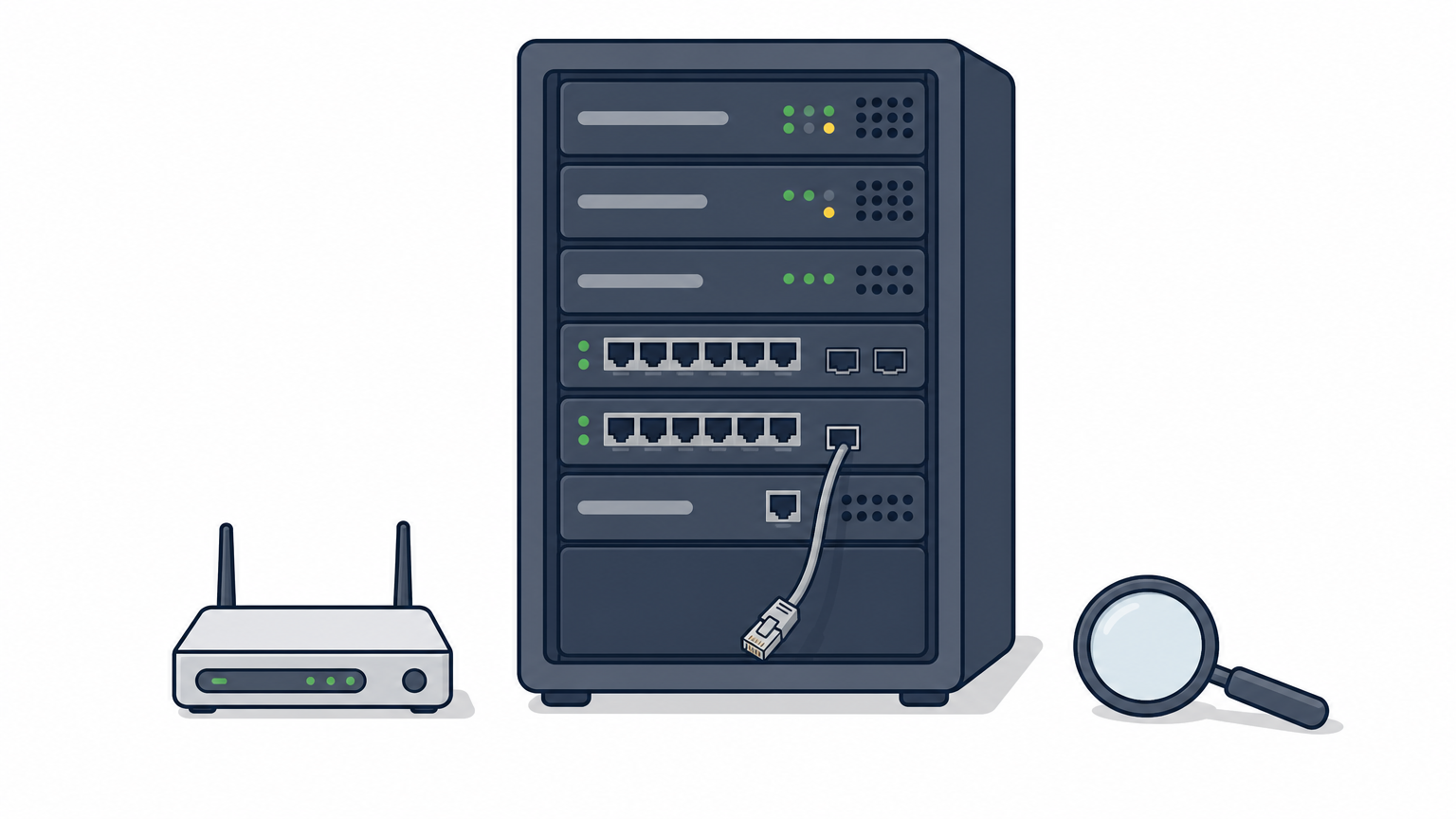
A site is down when it fails to return a usable response. That happens in three ways:
- The server answers with an error. You get a 5xx code such as 500 or 503.
- The server doesn't answer. The request times out or the connection is refused.
- The domain doesn't resolve. DNS can't turn the name into an IP address, so the request never reaches a server.
A site can also be technically up but so slow that it is unusable. Response time helps you catch that case.
Down for everyone or just you
A checker gives you a second opinion from outside your own device. Most "down for me" cases come from local causes: a stale DNS cache, a VPN, an ISP problem, security software, or a browser extension. If the checker gets a healthy response while your browser fails, one of those is the likely culprit.
One limit matters here. Some checkers test from many regions and catch regional outages, such as a CDN failing in one part of the world. A one-off check gives you one view. Treat the result as evidence, and confirm it with a second network in Step 3.
A status checker proves what the server returned to the checker, so pair it with a test from another network before you call a site down for everyone.
Step 1. Enter the exact URL
Enter the exact address that fails for you, not just the bare domain. A homepage can load while a deeper page returns an error, and a website status checker only tests what you give it.
Copy the address that fails
Copy the URL straight from your browser's address bar, including https://, any www, and the full path. If a shop's homepage works but /checkout fails, checking only the homepage gives you a false all-clear.
If you own the site, also test the variants a visitor might type: http:// and https://, with and without www. A misconfigured variant is a common reason a site works for some people and not others.
Run the check without signing up
Open the Bulk Status Checker and run it in four moves:
- Paste one URL, or several, one per line.
- Start the run.
- Read the status, redirect target, response time, and content type for each URL.
- Export to CSV if you want a record.
Requests use an anonymous browser user-agent with no cookies or authentication, so you see what a logged-out visitor gets. That is the right view for a public site. It is the wrong view for a page behind a login, which will usually answer with a redirect or a 401 or 403.
Check the exact URL that fails, because a working homepage says nothing about a broken page.
Step 2. Read the status code
The status code is the quickest signal in any website status checker result. A 2xx means success, 3xx means redirect, 4xx means the request was refused or the page is missing, and 5xx means the server failed.
Match the code to a meaning
| Result | What it means | Is the site down? |
|---|---|---|
| 200 | Server returned the page | No |
| 301, 302, 307, 308 | Redirect to another URL | No, check the target |
| 403 | Server refused the request | Not necessarily, may be blocking automated requests |
| 404 or 410 | Page missing or removed | Page is gone, site may be fine |
| 429 | Too many requests | No, you are being rate limited |
| 500 | Server error | Yes, for that page at least |
| 502 | Bad gateway, a proxy got a bad answer | Yes, usually temporary |
| 503 | Service unavailable, overloaded or in maintenance | Yes |
| 504 | Gateway timeout | Yes |
| No response | Timeout, refused connection, or DNS failure | Likely |
A 5xx code is the clearest sign the problem is on the site's end, and nothing you do locally will fix it. A 403 is trickier. Many firewalls block automated requests, so a 403 in the checker can sit alongside a page that loads fine in your browser.
What to do with redirects, timeouts, and slow responses
The Bulk Status Checker makes a single request per URL. It reports the first status, and when the server answers with a 3xx it shows the redirect target. A 301 is not a failure. Run the target URL through the checker next to see what the visitor finally lands on. For a long chain, the Redirect Chain Checker follows every hop.
A timeout with no status code usually means the server is overloaded or unreachable, or DNS is failing. Slow responses are a warning sign too. If the same URL took 300 ms yesterday and takes eight seconds now, the site is struggling even though it returns a 200.
A 5xx code or a timeout points at the site, and a 200 points back at you.
Step 3. Work out who is affected
Compare three results: the website status checker, your own browser, and a device on a different network. The pattern tells you whether the outage is yours, regional, or global.
Run the comparison
Turn off Wi-Fi on your phone, load the page over mobile data, and compare.
| Checker result | Your browser | Phone on mobile data | Likely cause |
|---|---|---|---|
| 200 | Fails | Works | Your network, DNS, VPN, or device |
| 200 | Fails | Fails | Your ISP or region, or a script error the checker can't see |
| 5xx or timeout | Fails | Fails | The site or its host is down |
| 403 | Works | Works | The site blocks automated requests, but real visitors are fine |
If the checker shows the site healthy and only your device fails, you can stop worrying about the site and fix your side.
Fix the local causes
Work through these in order, and retest after each:
- Open the page in a private window to rule out extensions and cached data.
- Turn off your VPN or switch to another one.
- Restart your router.
- Flush your DNS cache with the command for your system:
# Windows
ipconfig /flushdns

# macOS
sudo dscacheutil -flushcache; sudo killall -HUP mDNSResponder

# Linux (systemd)
resolvectl flush-caches
If it still fails, switch your device to a public DNS resolver or try a different network entirely. That isolates the problem to your ISP.
When the checker and your phone agree and only your laptop fails, the fix is local.
Step 4. Check your own site and many URLs at once
If the site is yours, a failed check is the start of a diagnosis, and one URL is rarely the whole story. Check the pages that matter in a single run, then trace the cause.
Trace the cause on your own site
Match the symptom to the first thing to check:
- 500 right after a deploy or plugin update: roll back the change and read the server error log.
- 502, 503, or 504: check your host's status page, and look for traffic spikes or exhausted server resources.
- Timeout or no response: confirm your DNS records and that the domain hasn't expired.
- Browser security warnings: check whether your SSL certificate expired.
Contact your host with the exact URL, the status code, and the time of the failed check. That saves a round of back-and-forth.
Check many pages in one run
Paste up to 200 URLs from a sitemap, a Search Console export, or a spreadsheet into the Bulk Status Checker. Say you check 60 key URLs after a migration and get 52 returning 200, 5 returning 301, 2 returning 404, and 1 returning 503. You now know which three pages need attention, and the CSV export makes a ready list to send to a developer.
For one page's links, the Broken Link Checker tests up to 200 links on a single page and shows the status of each. Keep the limits in mind: these are one-off checks, not a monitor. They don't send alerts when a site drops, so for round-the-clock uptime alerts you need a dedicated monitoring service.
One bulk run after any outage or migration shows which pages recovered and which still fail.
Run your first check
A website status checker answers a narrow question quickly: what did the server return? Enter the exact URL, read the status code, compare it with a second network, and you know whether to fix your side or wait for the site to recover. If the site is yours, check the pages that matter in one pass and trace the cause from the code.
When you want to try it, run a free status check on Scrawl. There is no signup or login, and it takes seconds.